
Docs
Using Stupid Satellites
Install from the download page — drag the app to Applications on macOS, or run the per-user installer on Windows (no admin needed). Everything below happens on your machine; nothing is uploaded anywhere.
Quick start
Open a photo. Drag it onto the window, click Open…, or double-click a TIFF/DNG via “Open With”. Detection starts immediately — the console shows the scan, the candidate count, and each validated lock as it happens.
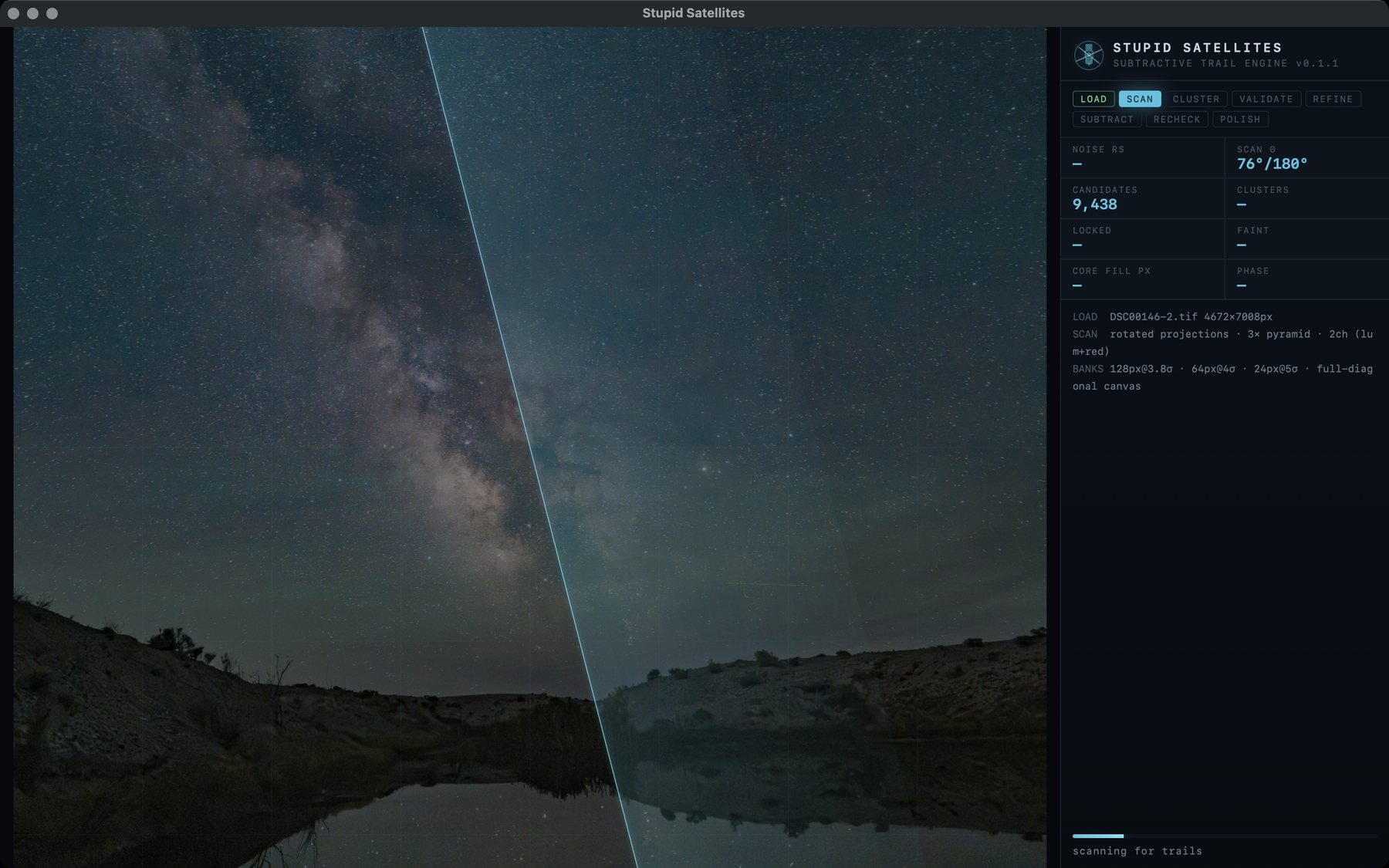
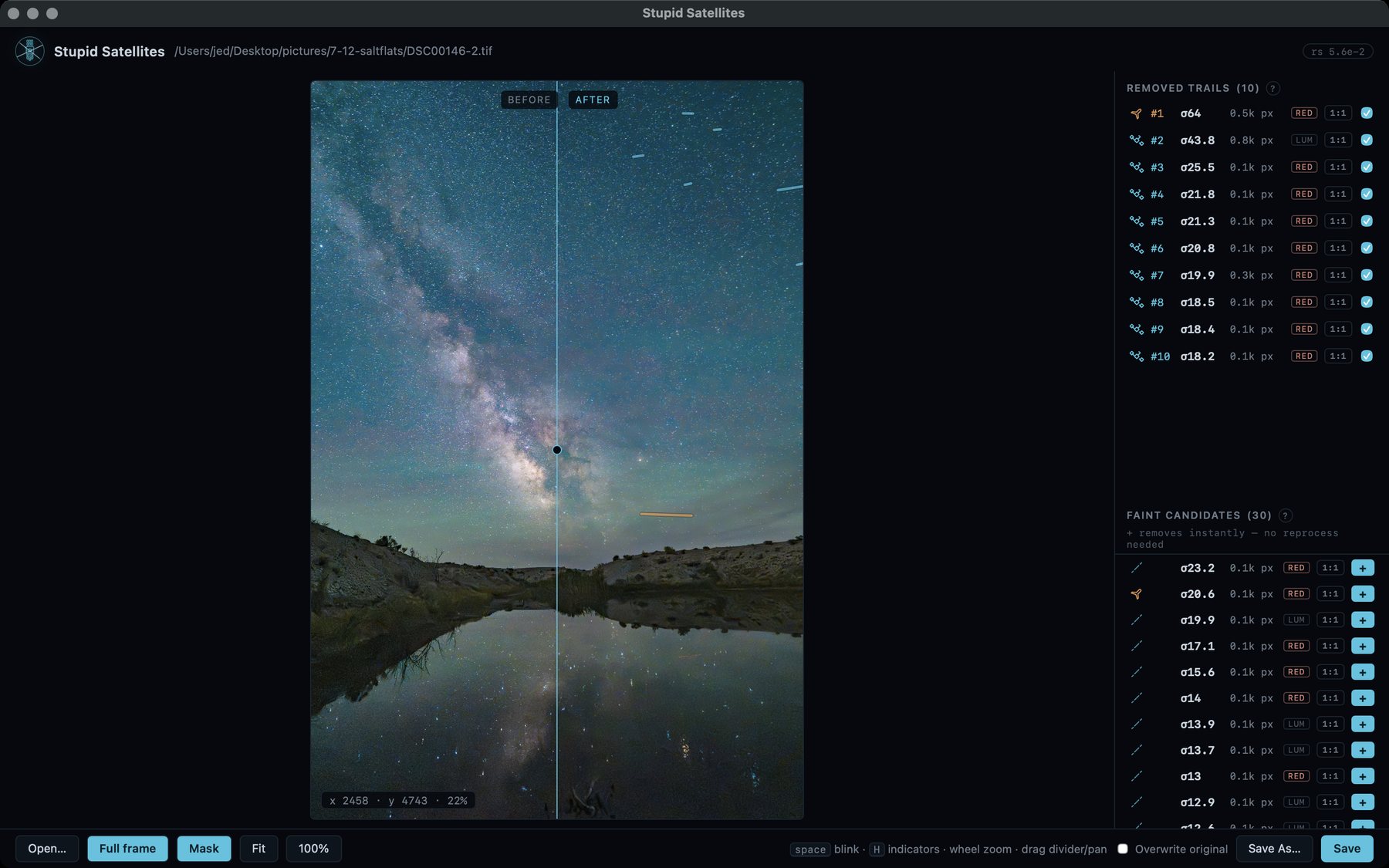
The scan in progress. No settings to pick first — processing is automatic. Review. Every removed trail is a row on the right — satellite or plane icon, σ score, channel, and how many pixels the repair touched. Untick a row to put that trail back (double star? real object?); click 1:1 to inspect it at native resolution. Faint candidates below the auto threshold wait for your call — press + to remove one.
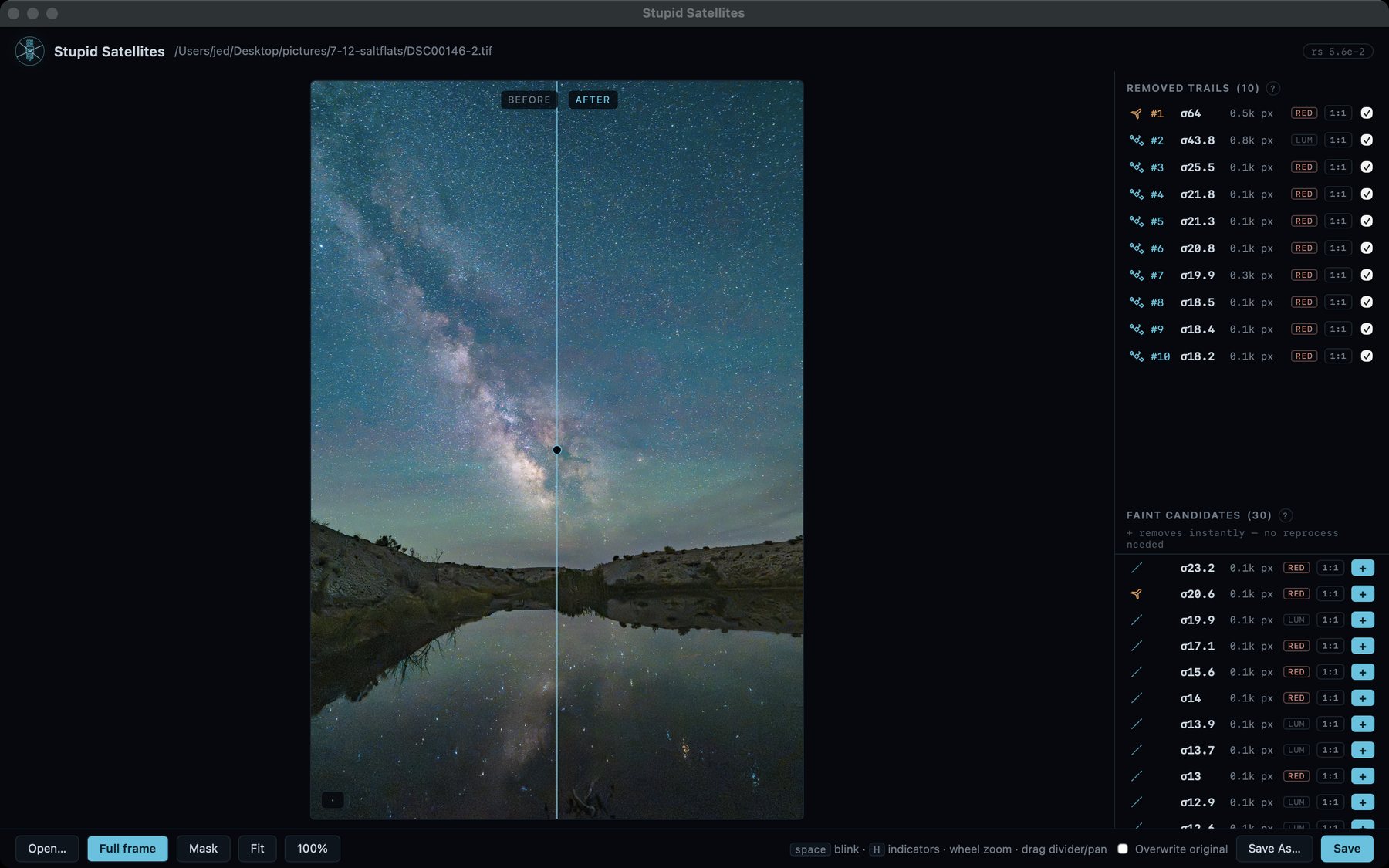
The review window — this frame had one plane and nine satellites. Save. Save writes
<name>_clean.tifnext to the original; Save As… picks a location. 16-bit TIFF, EXIF and colour profile preserved, pixels outside the repairs byte-for-byte identical.
Lightroom Classic round-trip
The app registers itself with Lightroom Classic automatically: the first time you open Stupid Satellites, it drops an external editor preset into Lightroom's preset folder. Restart Lightroom once, and Photo › Edit In › Stupid Satellites is there — no Preferences digging, and it doesn't touch your existing “Additional External Editor” slot (preset files are unlimited; that single slot in Preferences is just Lightroom's UI).
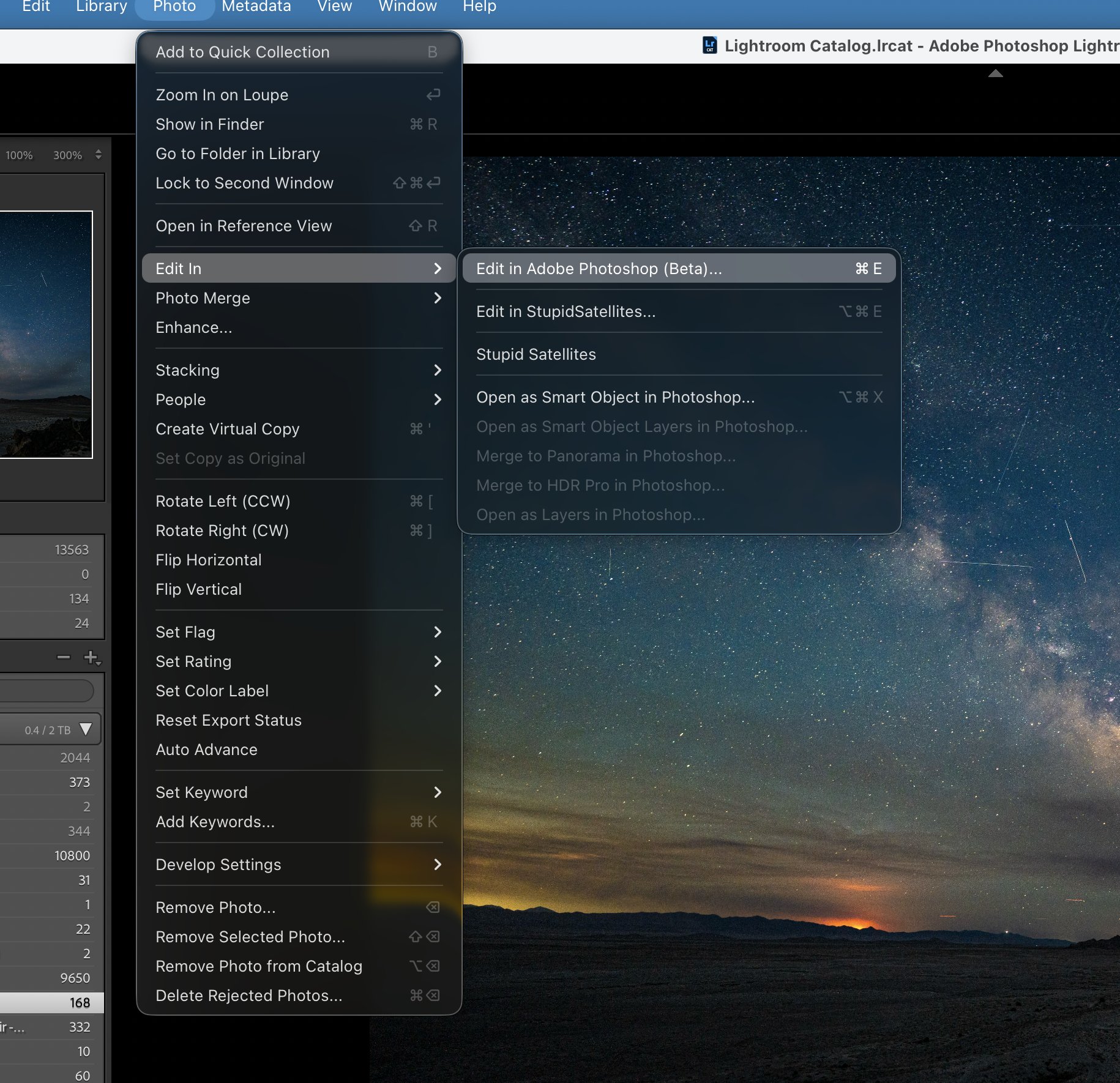
Select a photo → Photo › Edit In › Stupid Satellites. For raws Lightroom renders a copy with your adjustments; for TIFF/JPEG choose Edit a Copy with Lightroom Adjustments.
The app opens the handed-off TIFF (16-bit ProPhoto RGB, per the preset) and processes it. Review as usual.
Save. The Overwrite original toggle is pre-ticked — the app recognises Lightroom's
-Editnaming — so Save writes straight back and the result appears in your catalog, stacked with the original.
Note: Lightroom reads preset files at launch. If
Lightroom was open the first time you ran the app, restart Lightroom to
see the menu entry. You can re-run the registration any time with stupidsat lightroom-setup (see CLI below).
Manual setup (fallback)
When you need it: the Mac App Store build (sandboxed — it can't write into Lightroom's folder), or a custom configuration.
Lightroom Classic → Preferences → External Editing → Additional External Editor → Choose… and pick the Stupid Satellites app.
Set TIFF, 16 bits, ProPhoto RGB (or your working space), compression None.
In the Preset dropdown pick Save Current Settings as New Preset… and name it “Stupid Satellites”. Saving it as a preset gives it a permanent Photo › Edit In entry without occupying the single slot.
Command line
The app binary is also a CLI — useful for batch work and scripts. Where it lives:
- Windows: the installer puts
stupidsaton your PATH (an installer option, on by default). Open a new terminal after installing. Full path:%LOCALAPPDATA%\Programs\StupidSatellites\stupidsat.exe. - macOS (direct download):
/Applications/Stupid Satellites.app/Contents/MacOS/Stupid
            Satellites
. Link it asstupidsat(make sure~/.local/binis on your PATH):
mkdir -p ~/.local/bin && ln -sf "/Applications/Stupid Satellites.app/Contents/MacOS/Stupid Satellites" ~/.local/bin/stupidsat- Mac App Store build: sandboxed — it can't open files passed on the command line. For the CLI, use the direct download.
- From source:
pip install -e .gives youstupidsat.
stupidsat --version                   # check it's installed
stupidsat clean photo.tif             # auto-clean → photo_clean.tif
stupidsat clean photo.tif -o out.tif  # choose the output
stupidsat clean photo.tif --in-place  # overwrite the input
stupidsat clean photo.tif -v          # progress on stderr
stupidsat clean photo.tif --json      # one JSON result object on stdout
stupidsat clean photo.tif --lines lines.json  # also save the trail list
stupidsat detect photo.tif            # detection only, JSON on stdout, no edits
stupidsat detect photo.tif --json out.json    # …or write it to a file
stupidsat gui photo.tif               # open the review UI on a file
stupidsat lightroom-setup             # (re)register the Lightroom preset

# batch: clean every TIFF in a folder
for f in *.tif; do stupidsat clean "$f"; done
Reads TIFF, JPEG, PNG, DNG and camera raws (ARW, CR2, CR3, NEF, RAF,
ORF); writes 16-bit TIFF with EXIF preserved. clean removes
the auto trails only — faint suggestions are reported
but left in place for you to confirm in stupidsat gui.
clean --json prints exactly one object: {"input", "output", "auto", "suggestions", "seconds"}; detect prints {"auto", "suggestions"}.
Each trail has id, endpoints p1/p2 as [x, y] pixels, score (σ), channel, is_dash and enabled.
Exit code is 0 on success, 1 on failure with error: <message> on stderr.
For AI agents
An AI agent running on your machine — Claude Code, Codex and the like — can clean photos through the CLI with no UI at all. Give it a prompt such as:
Use the stupidsat CLI (see https://stupidsatellites.com/llms.txt) to remove satellite trails from every TIFF in ~/Astro/tonight
What the agent should run:
# 1. find the binary (PATH, then the per-OS paths above)
stupidsat --version
# 2. preview: what would be removed, no edits
stupidsat detect photo.tif
# 3. clean; parse the single JSON object on stdout, check the exit code
stupidsat clean photo.tif --json
Suggestions are never removed by clean — the agent should
report them and leave the call to you (stupidsat gui photo.tif). The Mac App Store build can't be driven from the command line;
agents need the direct download. The full agent
brief is at /llms.txt.
What it guarantees
- 16-bit output; EXIF and colour profile preserved.
- Pixels outside a repaired trail are byte-for-byte identical.
- Stars are never invented — subtraction can only remove the trail's light. No AI, nothing generated.
- No network access; nothing leaves your machine.
Troubleshooting
“Stupid Satellites” is missing from Photo › Edit In
Restart Lightroom — presets are read at launch. Still missing? If you
use Lightroom's “Store presets with this catalog” option, presets live
next to your catalog instead of the global folder; run stupidsat lightroom-setup and copy the printed .lrtemplate into <catalog folder>/Lightroom Settings/External Editor Presets/, or use the manual setup above.
I see two entries — “Edit in StupidSatellites…” and “Stupid Satellites”
The first is an old manually-configured Additional External Editor slot; the second is the auto-installed preset. Both work. To drop the old one, open Preferences → External Editing and point the Additional External Editor elsewhere (the preset entry stays).
The result didn't come back into Lightroom
The round-trip relies on saving over the -Edit file
Lightroom created. Check the Overwrite original toggle was on
when you saved — if you used Save As… to a new name, import that
file or use Library → Synchronize Folder.
Lightroom sent an 8-bit file / wrong colour space
That photo went through an old manual slot, not the preset — the auto-installed preset always requests 16-bit ProPhoto TIFF. Use the “Stupid Satellites” entry, or fix the manual slot's settings.
macOS says it can't verify the developer / Windows SmartScreen warns
First-launch trust prompts for fresh downloads — see the support page for the two-click fix on each OS.
Stuck on a frame? The support page has the FAQ and a contact link — real frames make the tool better.